My Practice Cloud Associates Report

This report provides a complete financial picture, showing how your practice/s financial position has changed over the reporting period using MPC. Data is presented broken down by provider and can be drilled into for analysis.
⚠️Note: This report is only available for customers using My Practice Cloud
 Accessing the Associates Report
The Associates report can be accessed via your browser by logging in to SOE Connect. Navigate to https:\\YourAccountID.soeconnect.net/account/login and log in with your credentials
If you are part of a corporate group, you may have data for multiple practices available.
- Check the correct practice is selected at the top of the screen.
- Click in the top bar where it says Select a practice... or where there is an existing practice name and choose the correct practice from the drop-down menu.
- Use the side-bar menu to select the Associates report.
- The report allows you to select a date range, and will default to the last calendar month.
- To select a custom date range, click on the dates shown.
- To select a custom date range, click on the dates shown.
- You can select a preset, or click on the Custom range option to select any pair of dates you require. Once you have selected the dates you want, click on APPLY so they are set for the report.
- Click Run Report.
- A progress bar will display, showing how the report collation is progressing.
- The report can take some time, depending on the selected date range and how busy your practice is.
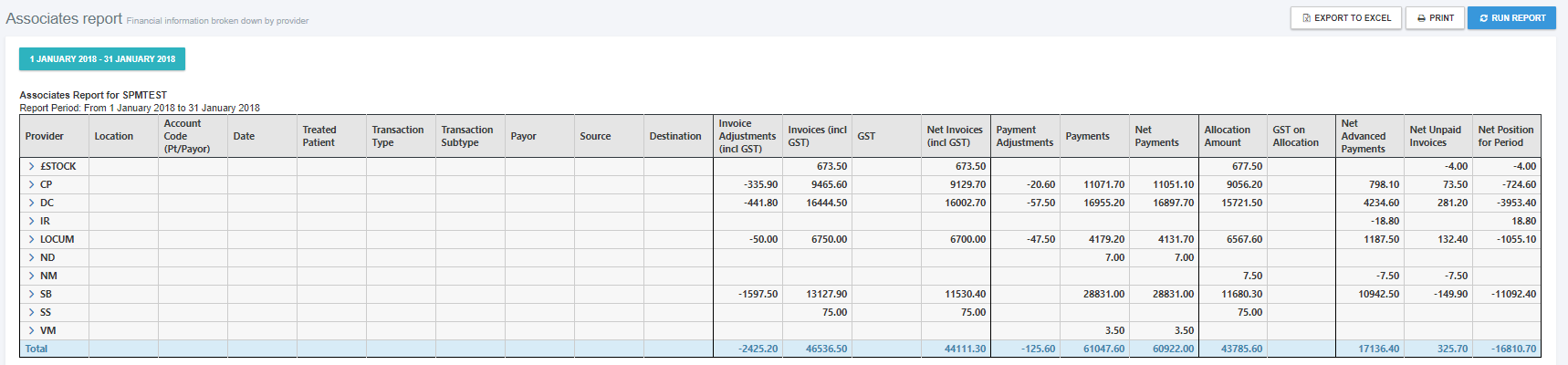
- Once compiled, a summary will display, providing top level numbers for each provider that has transactions in the date range.
⚠️ Note: The report is quite wide, so you may need to set the browser scaling down from its usual size to fit everything in. If the report doesn't fit on the screen, a scroll bar will appear that allows you to navigate the report whilst keeping the header in view.
Exploring the Associates Report Data
- Click the > next to a providers code to expand their data to show individual lines.
- Click on the button to download a file with the raw data in CSV format. You can use a program like Excel to perform detailed searches, filters, and sorts.
- If you discover problems in the data that need to be corrected in the reporting period, you can make these changes directly in EXACT. When you are ready, click on again to see the updated results.
- If required the report can be printed out for posterity. It will print as it is displayed on screen, so if a provider's transaction detail has been opened up, then this will be printed.
Troubleshooting
-
If you cannot see the report section in SOEConnect, verify that you have the Report and Associates Report ticked in the permissions.
-
If you cannot see the Report permission in SOEConnect, verify that your tenant has the feature enabled.
-
The longer the date range chosen the more data is returned. Depending on your browser and local system this will eventually cause issues. If you do experience problems try selecting a shorter date range.
Comments
0 comments
Please sign in to leave a comment.